
How to Install Clockworkmod (CWM) on HTC One V

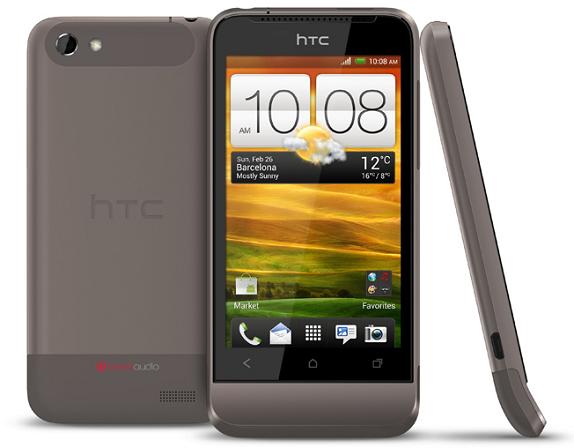
HTC One V

The Simple tutorial to install Clockworkmod (CWM) recovery on HTC One V. CWM Recovery is very helpful and its different from the Normal recovery Mode. It provides very different options that normal recovery doesn’t have .You can able to install custom roms on HTC One V after CWM installed on your phone.

Unlocking bootloader and installing CWM on your phone will void your warranty or may cause damage to your phone. Please read the instructions carefully. Razzil will not be responsible for any damage.

Requirements:

Instruction to install Clockworkmod (CWM) on HTC One V:

  1. Unlock the bootloader of HTC One V.
  2. Install HTC Sync on your computer
  3. Create folder ‘Fastboot’ in your computer and Extract fastboot.zip on that folder
  4. Copy the ‘recovery.img’ file to the ‘Fastboot’ folder. (Now you’ve 5 files in Fastboot folder).
  5. Switch off the phone and Enter into fastboot mode by holding Volume Down button and then press power key. Then, select the fastboot mode( Use Volume button to navigate and power button to select)
  6. Once you’re in fastboot mode, connect your phone to the computer.
  7. Open Command Prompt on your computer (Win + R and type cmd)
  8. Navigate to Fastboot folder by using this command –> cd c:\Fastboot
  9. Type ‘fastboot devices’ on Command Prompt ( If a string of number and letter is shown it means your phone is properly connected).
  10. Type ‘fastboot flash recovery ‘recovery.img’, After that recovery.img will flashed and you’ll get okay message in command prompt.
  11. Once the installation is complete, reboot the phone by typing ‘fastboot reboot’ and press Enter in the command prompt to reboot the phone.
  12. Kudos You’ve successfully install Clockworkmod (CWM) recovery on HTC One V.
Thanks vivekkalady

HTC One V

The Simple tutorial to install Clockworkmod (CWM) recovery on HTC One V. CWM Recovery is very helpful and its different from the Normal recovery Mode. It provides very different options that normal recovery doesn’t have .You can able to install custom roms on HTC One V after CWM installed on your phone.

Unlocking bootloader and installing CWM on your phone will void your warranty or may cause damage to your phone. Please read the instructions carefully. Razzil will not be responsible for any damage.

Requirements:

Instruction to install Clockworkmod (CWM) on HTC One V:

  1. Unlock the bootloader of HTC One V.
  2. Install HTC Sync on your computer
  3. Create folder ‘Fastboot’ in your computer and Extract fastboot.zip on that folder
  4. Copy the ‘recovery.img’ file to the ‘Fastboot’ folder. (Now you’ve 5 files in Fastboot folder).
  5. Switch off the phone and Enter into fastboot mode by holding Volume Down button and then press power key. Then, select the fastboot mode( Use Volume button to navigate and power button to select)
  6. Once you’re in fastboot mode, connect your phone to the computer.
  7. Open Command Prompt on your computer (Win + R and type cmd)
  8. Navigate to Fastboot folder by using this command –> cd c:\Fastboot
  9. Type ‘fastboot devices’ on Command Prompt ( If a string of number and letter is shown it means your phone is properly connected).
  10. Type ‘fastboot flash recovery ‘recovery.img’, After that recovery.img will flashed and you’ll get okay message in command prompt.
  11. Once the installation is complete, reboot the phone by typing ‘fastboot reboot’ and press Enter in the command prompt to reboot the phone.
  12. Kudos You’ve successfully install Clockworkmod (CWM) recovery on HTC One V.
Thanks vivekkalady
Raza Rahil Hussain
Raza Rahil Hussain
I’m a Founder of Razzil, a Web 3.0 enthusiast, who loves the Internet. I am an innovator mind and love to do creative work.

More from author

LEAVE A REPLY

Please enter your comment!
Please enter your name here

Related posts

Advertismentspot_img

Latest posts

Aula F99 Pro Review – The Best 96% Budget Mechanical Keyboard?

If you're in the market for a quality mechanical keyboard on a budget, you'll find plenty of options from brands like Aula, Ajazz, Weikav,...

How to Install Home Assistant Core on Raspberry Pi 5

Home Assistant is an open-source project that is single-handedly taking home automation to the next level. It's not just a platform to manage your...

Vivo India Launches the Vivo X200 Series with ZEISS Camera Experience

Vivo India has launched the Vivo X200 Series in India, featuring a ZEISS Camera experience. Both the Vivo X200 and X200 Pro are now...

Want to stay up to date with the latest news?

We would love to hear from you! Please fill in your details and we will stay in touch. It's that simple!